This documentation has moved
This content now lives on the Virtana documentation site and is no longer updated. This site will be taken offline on January 31, 2027.
Go to the current documentation and update your bookmarks.
tui
The default configuration of a collector virtual machine uses DHCP to obtain IPv4 and IPv6 addresses. Use this procedure to configure static addressing, specify DNS servers in your environment, and specify search domains. The latter two are commonly required to resolve the names of devices in your network environment.
Warning
Please do not change the virtual machine hostname.
-
Gain access to the console interface of the virtual machine through your hypervisor or through a remote shell utility such as PuTTY.
-
Log in to the system as user
ccuser, passwordzenoss. -
Enter a new, secure password when prompted and keep a secure record of the chosen password.
-
In the appliance menu, select Configure Network, and then press Enter.

-
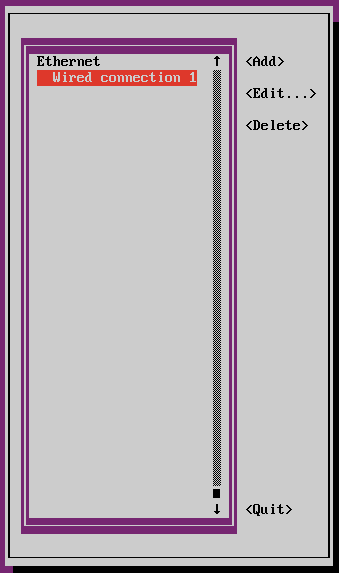
In the NetworkManager TUI, use the arrow key to select Edit a connection, and then press Enter.
Make sure you edit the Wired connection interface. Currently, a few known issues can cause other, incorrect interface names to appear—for example, ensplan. Please ignore those.
-
From the Ethernet interfaces, select Wired connection 1, and then use the right and down arrow keys to select <Edit...>. Press Enter.

-
In the Edit Connection area, use the TAB key to select the <Show> command next to IPv4 CONFIGURATION or IPv6 CONFIGURATION, and then press Enter.
-
Change <Automatic> to <Manual>, and then enter a static address in CIDR notation.
If no prefix size is specified, the default (
/32) is used.
-
In the DNS servers field, enter the IP address of one or more DNS servers in your environment.
-
In the Search domains field, enter one or more domain names used in your environment.
-
Use the TAB key to select OK, and then press Enter.
-
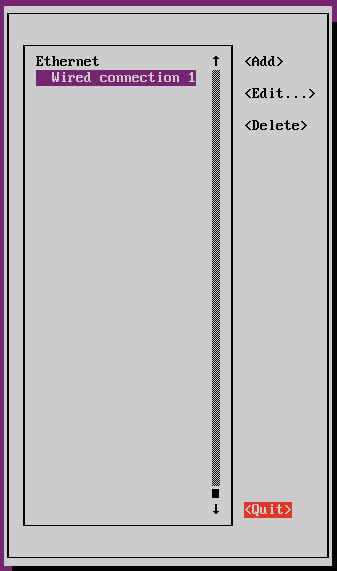
Use the down arrow key to select <Quit>, and then press Enter.
-
In the appliance menu, select Reboot Appliance, and the press Enter.