This documentation has moved
This content now lives on the Virtana documentation site and is no longer updated. This site will be taken offline on January 31, 2027.
Go to the current documentation and update your bookmarks.
2026 updates
Welcome to the 2026 update notes for Virtana Service Observability (formerly Zenoss Cloud). The visible and not-so-visible parts of Virtana Service Observability are updated regularly. This page highlights the new features and enhancements.
May
This month's updates include the following announcements:
Collection Zone > Maintenance windows
The planned deprecation of the Collection Zone (CZ) Maintenance Window feature has been postponed. Existing CZ maintenance windows remain fully supported in production environments. An updated timeline for the final deprecation and the production rollout of the new cloud-based functionality will be provided in a future announcement.
Current status
You can continue to create and manage maintenance windows in the CZ environment.
Recommended actions
Take the following steps to prepare for the upcoming migration to the cloud:
-
Request early access. To be among the first to try the new maintenance windows, contact your customer success manager (CSM).
-
Audit your CZ maintenance windows. Review your current CZ environment and remove any obsolete or unwanted maintenance windows. Only active, recurring schedules should remain to ensure a clean data migration.
For more information, contact Virtana Support.
April
This month's updates include the following enhancements:
Maintenance Windows > Partially Completed status
When you check the Activity and Timeline tabs within Admin > Maintenance Windows, you may now see a maintenance window in a "Partially Completed" state. The "Partially Completed" state is represented with a lighter yellow color and a half-circle icon.
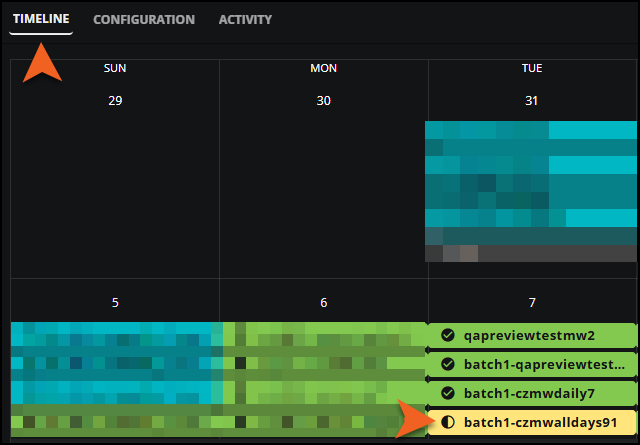
Why is this important to you?
This new state provides a visual indication of the true progress of your maintenance window. It means the instance has finished the standard "In Progress" phase, but can’t be fully verified as "Completed."

When you see "Partially Completed" as the status, it indicates that the system detected a potential issue that requires further investigation. This can happen if:
-
A potential silent failure was detected, for example, the change wasn't communicated correctly to Collection Zone (CZ).
-
Certain runtime errors occurred that might succeed upon retry.
-
The entities involved were part of multiple maintenance windows that started and ended simultaneously.
Important
Because the maintenance window is waiting on a successful rerun, it's critical that you do not manually change any states on the CZ side that might be overwritten by the automated rerun process. This status only applies to maintenance windows that include Collection Zone devices.
The maintenance window remains in the "Partially Completed" state, even after a rerun succeeds. The "Completed" state is only applied if no rerun was needed. This ensures you are always aware of instances that required additional system verification before reaching final success.
If you see a "Partially Completed" state for a maintenance window, go to CZ and check if the Production State is updated as expected. If you see "Partially Completed" maintenance windows on a regular basis, contact Virtana Support.
To learn more, see Maintenance window calendar.
Maintenance Windows > Improved Timeline view
We've updated the Maintenance Window Timeline with new Day and Week views, so you can easily switch between Day, Week, and Month views using the view selector. This enhancement helps administrators confidently manage complex maintenance workflows by providing a granular level of detail to review overlapping schedules and validate the timing and duration of maintenance windows.
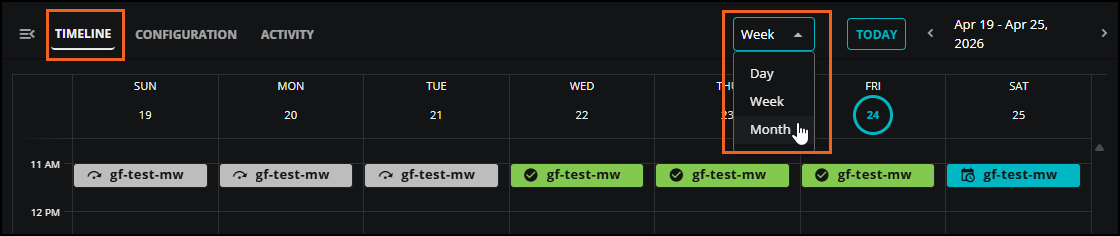
In addtion, you can see more details in your Timeline views. Days containing five or more maintenance windows now display an indicator showing the total count, for example, "2 more".
To see the change, click Admin > Maintenance Window, then select the Timeline view.
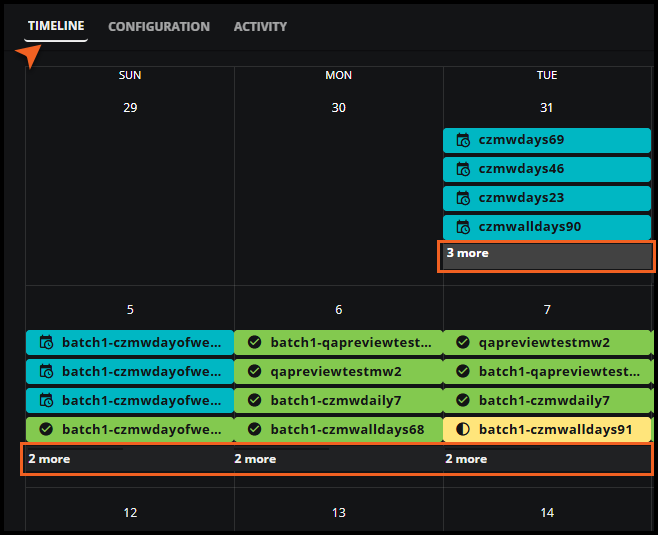
To learn more, see Maintenance window calendar.
Inventory > Improved Inventory sidebar navigation
The Inventory page now features an updated sidebar experience. When opened, the sidebar remains visible, pushing the main content to the right instead of overlapping it.
The sidebar contains two tabs: Queries and Organizers. Selecting a tab instantly loads the corresponding view in the main page. With the sidebar staying open, you can now quickly click through different queries or organizer sections and see the results immediately in the main view without having to repeatedly reopen the sidebar.
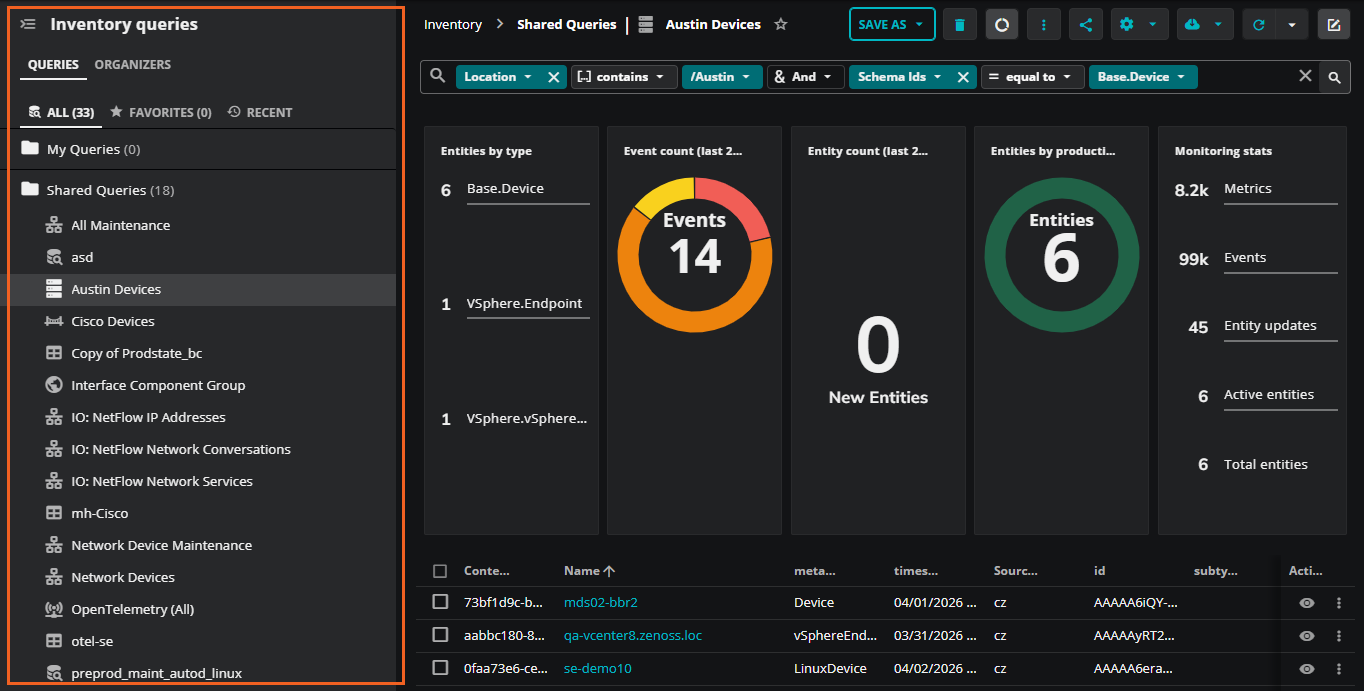
To learn more, see Inventory in Inventory.
Inventory > Step back through Inventory filters with the Previous filter button
We've improved the usability of exploring your Inventory data.
Previously, when you clicked on a filter in the Inventory summary view tiles, your only option was to completely reset the filter state. Now, you can undo the most recent filter application incrementally.
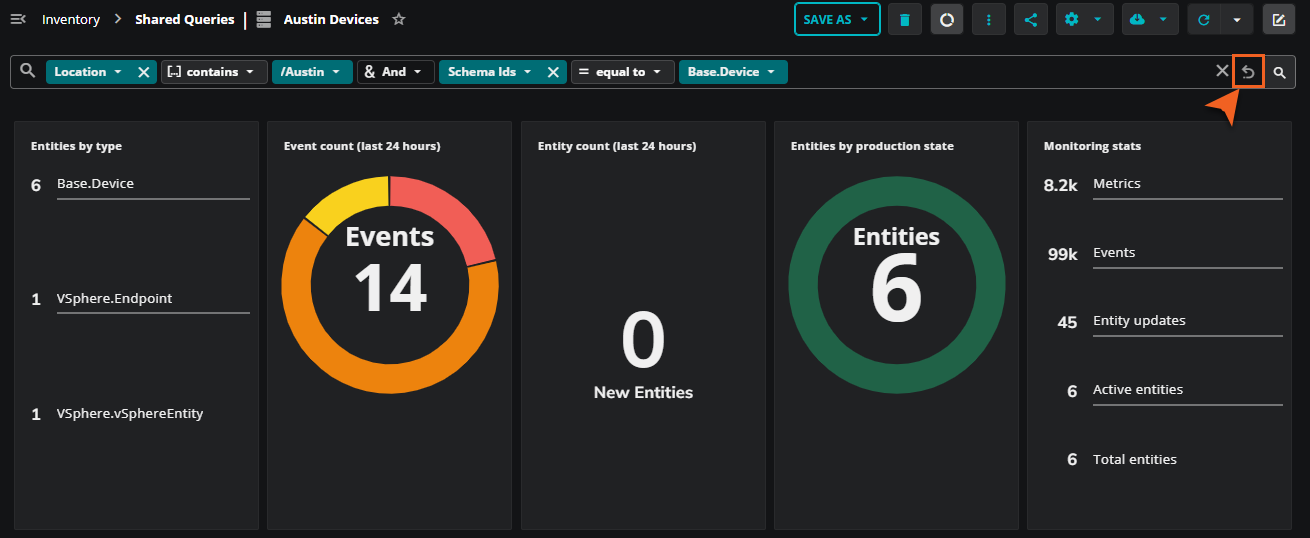
How it works:
-
When you click a summary view tile to apply a filter, a new Previous filter button appears in the query search bar.
-
Clicking this button removes the last applied filter, letting you step back one state at a time. You can continue clicking the button to undo filters until you return to the original query state, at which point the button disappears.
This enhancement allows you to safely drill down into your Inventory data using summary tiles and easily step back without losing all prior context, making it simpler to explore and analyze your data.
To learn more, see Inventory
Inventory > Improved column selection
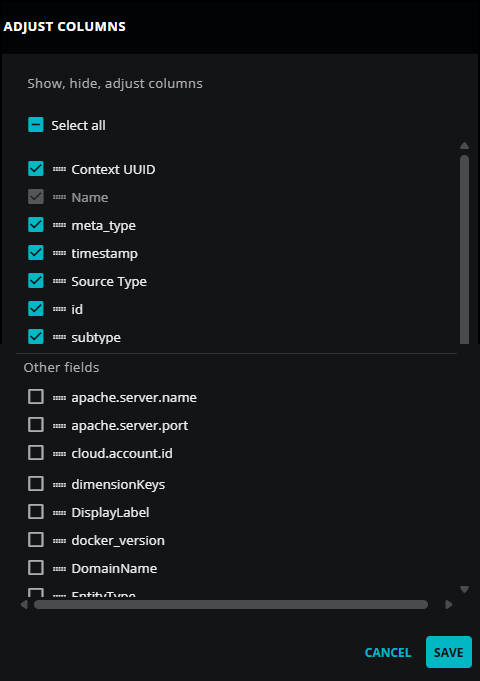
Users can now select all available fields found in entities as columns, regardless of the inventory view type (new, saved, or template). This capability was previously limited to new queries, where users had to manually enable all available fields in the ADJUST COLUMNS panel.
To further improve usability, ADJUST COLUMNS now shows a divider to clearly distinguish between the default set of columns and all other existing entity fields. The selection process within the selector remains the same: selecting a column moves it to the visible columns section.
March
This month's updates include the following enhancements:
Smart View
We have added a new Explore more button to the Smartview toolbar to help you jump directly to the specific tools you need, such as Container Observability or Inventory. This feature saves you time by automatically showing the most relevant links based on the entity you are viewing.
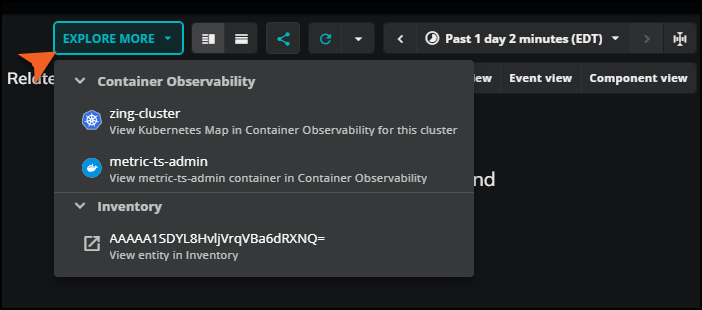
After you perform a search in Smart View, click the EXPLORE MORE button in the top toolbar to open a menu with links tailored to your current search results. The menu options are based on the type of data you are looking at:
-
Kubernetes entities: If you are viewing a cluster for Container Observability, you will see links to both Inventory and Container Observability.
-
CZ entities: If the entity is anchored in Collection Zone, you will see links to Inventory and CZ.
-
Standard entities: For all other searches, you will see a link to Inventory to view general configuration details.
The Inventory link opens in your current browser tab so you can stay within your workflow. Links to CZ and Container Observability open in a new tab, allowing you to compare data side-by-side without losing your Smartview search.
For more information, see Smart View.
Inventory
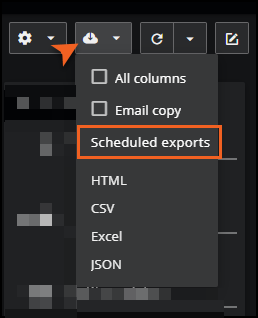
The new Export Scheduler for Inventory is designed for users who need regular updates about their infrastructure health without the manual effort of repetitive downloads. Benefits include:
-
Automation: Set up a report once and receive it as often as you need.
-
Improved collaboration: Automatically share public inventory views with your entire team through email.
-
Direct access: Every export email includes a direct link back to the specific inventory view in Inventory, making it easy to jump from your inbox to the live data. Be sure that you are logged in to Virtana SO to view the query.
This feature is available to all users who have write permissions in Inventory. For more information about user roles and permisions, see Roles and Permissions.
Look for the new Scheduled exports option under the Export table button on any of your saved Inventory views.
For more information, see Export query results in Inventory.
Past update notes
Looking for last year's feature releases? See 2025 update notes.